Introduction
This article I will be talking about Apache Spark / Databricks. It will guide you through how to use the new cloud based hosted Databricks platform. This article will talk about it from a Microsoft Azure standpoint but it should be exactly the same ideas if you were to use Amazon cloud.
What Is Spark / Databricks?
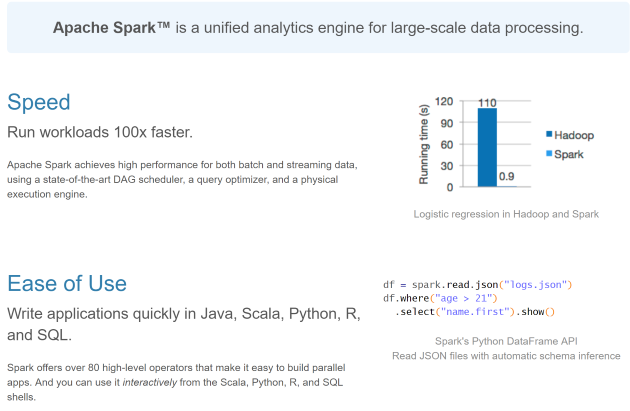
A picture says a thousand word, they say, so here is a nice picture of what Apache Spark is.
CLICK FOR BIGGER IMAGE
At its heart Apache Spark is a tool for Data Scientists to allow them to explore and crunch vaste amounts of data with ease. It features things like
- Distributed Datasets (so that number crunching can happen across a compute cluster)
- A DataFrame API, such that you can do things like add columns, aggregate column values, and alias data, join DataFrames. This also supports a SQL syntax, and also rund distrobuted across a cluster
- A streaming API
- A Machine Learning API
- A Graph API
Spark also comes with various adaptors to allow it connect to various data sources such as
- Blobs
- Databases
- Filesystems (HDFS / s3 / Azure storage / azure datalake / Databricks file system)
This is not the first time I have written about Apache Spark, here are some older articles on it should you be interested
So when I wrote those articles, there was limited options about how you could run you Apache Spark jobs on a cluster, you could basically do one of the following:
- Create a Java/Scala/Python app that used the Apache Spark APIs and would run against a cluster
- Create a JAR that you could get an existing cluster to run using a spark-submit command line
The problem with this was that neither were ideal, with the app approach you didnt really want your analytics job to be an app, you really just wanted it to be a class library of some sort
Spark-Submit would let you submit a class library, however the feedback that you got from it was not great
There was another product that came out to address this call Apache Livy that was a REST API over Apache Spark. But it too had its issues, in that it was not that great to setup, and the API was fairly limited. To address this the good folk that own/maintain Apache Spark came out with Databricks.
Databricks is essentially a fully managed Apache Spark in the Cloud (Amazon / Azure). It also has the concept of REST APIs for common things. Lets dig into that next.
Why Is Databricks So Cool?
Just before we get into Databricks, why is it that I think it's so cool?
Well I have stated one point above already, but lets see the full list
- Great (really good) REST API
- Nice managemanent dashboard in the cloud
- The ability to create a on-demand cluster for your own job run that is torn down at the end of the job is MASSIVE. The reason this one point alone should make you think about examining Databricks is as follows
- By using your own cluster you are not sharing any resources with some one else, so you can guarentee your performance based on the nodes you choose for your cluster
- The cluster gets torn down after your job has run. This saves you money
- If you chose to use a single cluster rather than a new cluster per job, you can have the single static cluster set to AutoScale. This is a pretty neat feature. Just imagine trying to do that in-premise. Obviously sinceApache Spark also supports running on Kubernetes that does ease the process a bit. However to my mind to make the best use of Kubernetes you also want to run that on a Cloud such as Amazon / Azure / Google, as scaling the VMs needed for a cluster is just so MUCH easier if you are in a Cloud. Just as an aside if you don't know your Kubernetes from an onion I wrote a mini series on it which you can find here :https://sachabarbs.wordpress.com/kubernetes-series/
- It's actually fairly cheap I think for what it gives you
- It's highly intuitive
Where Is The Code?
So there is a small bit of code that goes with this article, which is split into 2 things
- A throw-away WPF app that simply acts as a vehicle to demonstrate the REST calls, in all seriousness you could use postman for the Databricks REST exploration. The WPF app just makes this easier, as you don't have to worry about remembering to set an access token, once you have set it up once, and trying to find the right REST API syntax. The UI just shows you a working set of REST calls for Databricks
- A simple IntelliJ IDEA Scala/SBT project, that represents a Apache Spark job that we wish to upload and run on Databricks. This will compiled using SBT, as such SBT is a must have if you want to run this code
The code repo can be found here : https://github.com/sachabarber/databrick-azure-spark-demo
Prerequisites
There are a few of these, not because Databricks needs them as such, but because I was keen to show you an entire workflow of how you might use Databricks for real to do your own jobs, which means we should create a new JAR file to act as a job to send to Databricks.
As such the following is required
- A Databricks installation (either Amazon/Azure hosted)
- Visual Studio 2017 (Community editition is fine here)
- Java 1.8 SDK installed and in your path
- IntelliJ IDEA Community Edition 2017.1.3 (or later)
- SBT Intellij IDEA plugin installed
Obviously if you just want to read along and not try this yourself, you won't need any of this
Getting Started With Databricks In Azure
As I said already I will be using Microsoft Azure, but after the initial creation of Databricks in the Cloud (which will be cloud vendor specific) the rest of the instructions should hold for Amazon or Azure.
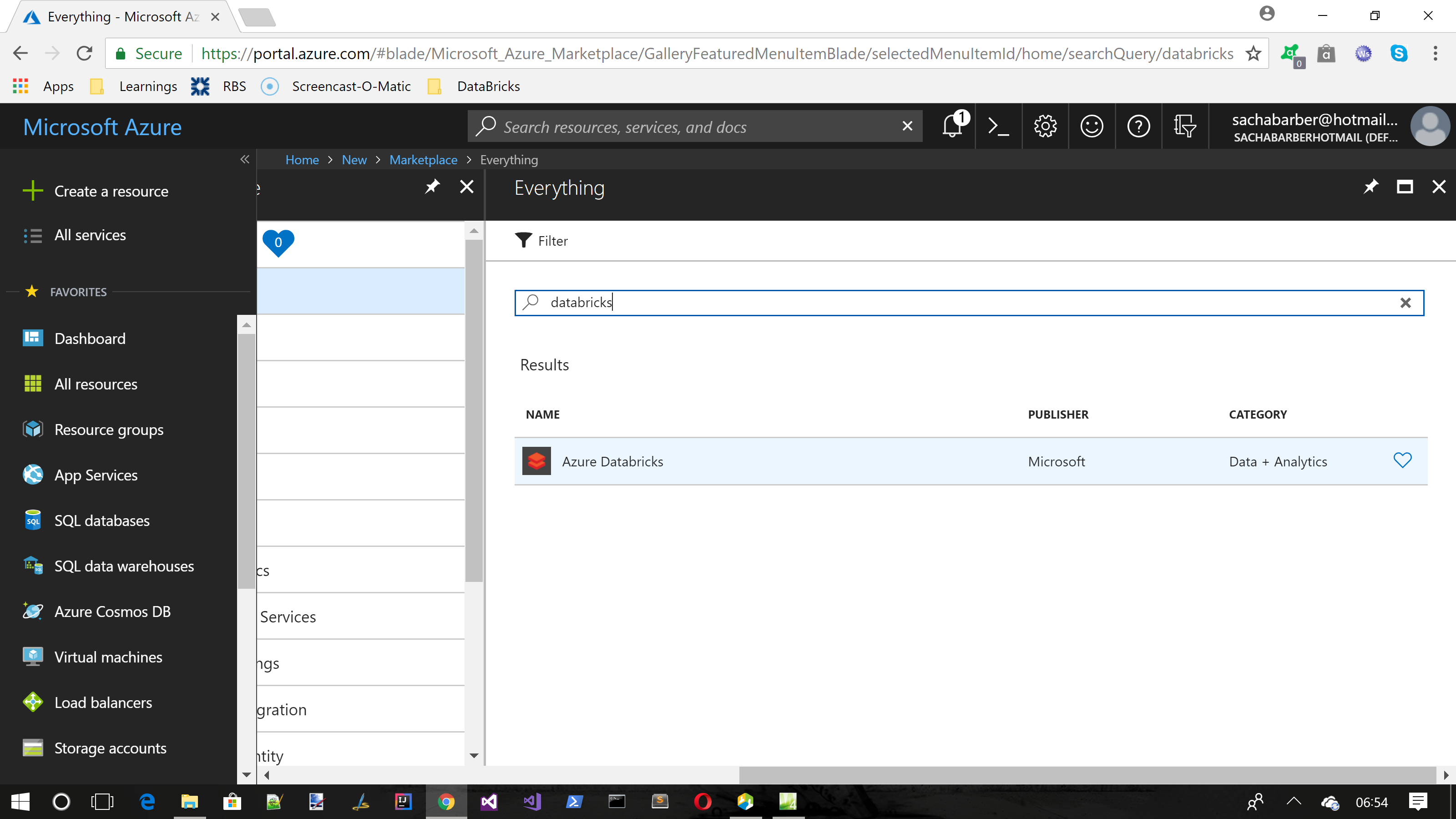
Anyway the first step for working with Databricks in the cloud is to create a new Databricks instance. Which for Azure simple means creating a new resource as follows:
CLICK FOR BIGGER IMAGE
Once you have creating the Databricks instance, you should be able to launch the workspace from the overview of the Databricks instance

CLICK FOR BIGGER IMAGE
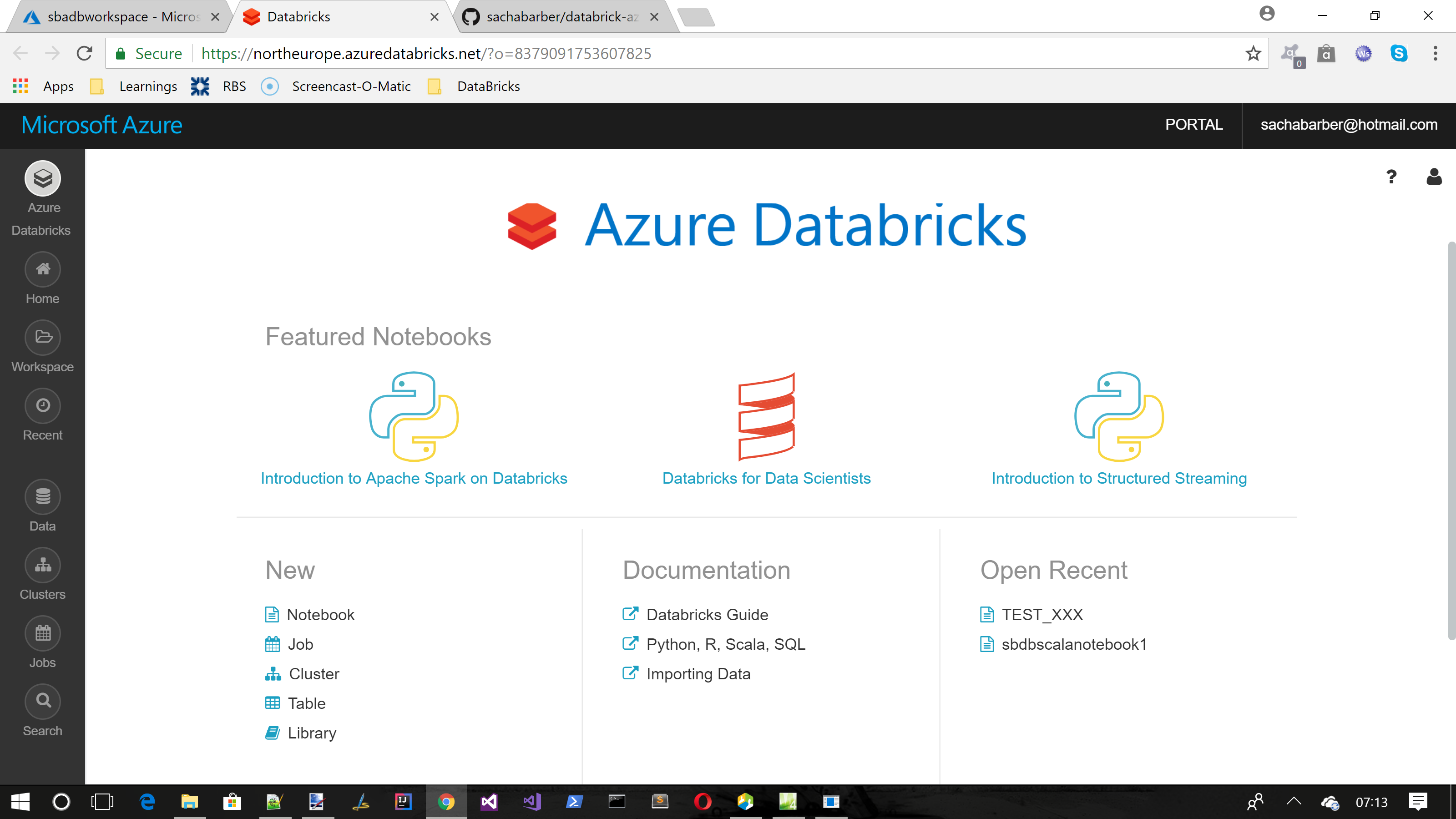
This should launch you into a new Databricks workspace website that is coupled to your Azure/Amazon subscription, so you should initially see something like this after you have passed the logging in phase (which happens automatically, well on Azure it does anyway)
CLICK FOR BIGGER IMAGE
From here you can see/do the following things, some of which we will explore in more detail below
- Create a new Job/Cluster/Notebook
- Explore DBFS (Databricks file system) data
- Look at previous job runs
- View / start / stop clusters
Exploring The Workspace
In this section we are going to explore what you can do in the Databricks workspace web site that is tied to your Databricks cloud installation . We will not be leaving the workspace web site, everything below will be done directly in the workspace web site, which to my mind is pretty cool, but where this stuff really shines is when we get to do all of this stuff programatically, rather than just clicking buttons on a web site.
After all we would like to build this stuff into our own processing pipelines. Luckily there is a pretty good one-one translation from what you can do using the web site compared to what is exposed via the rest API. But I am jumping ahead we will get there in the section after this, so for now lets just examine what we can do in the Databricks workspace web site that is tied to your Databricks cloud installation.
Create A Cluster
So the very first thing you might like to do is create a cluster to run some code on. This is easily done using the Databricks workspace web site as follows
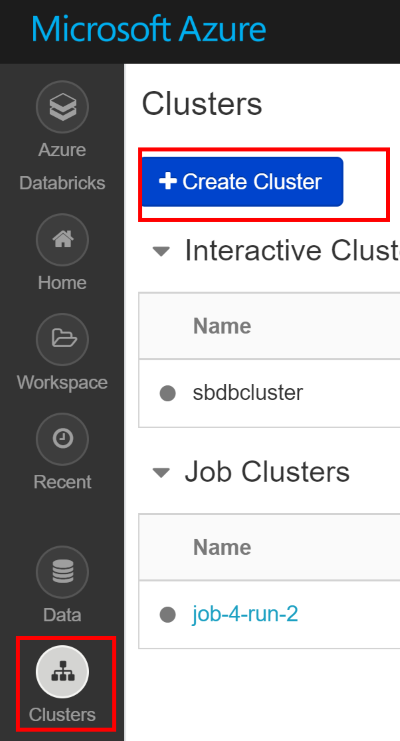
This will bring you to a screen like this, where you can configure your cluster, where you pick the variouos bits and peices for your cluster

CLICK FOR BIGGER IMAGE
Once you have created a cluster it will end up being listed on the clusters overview page
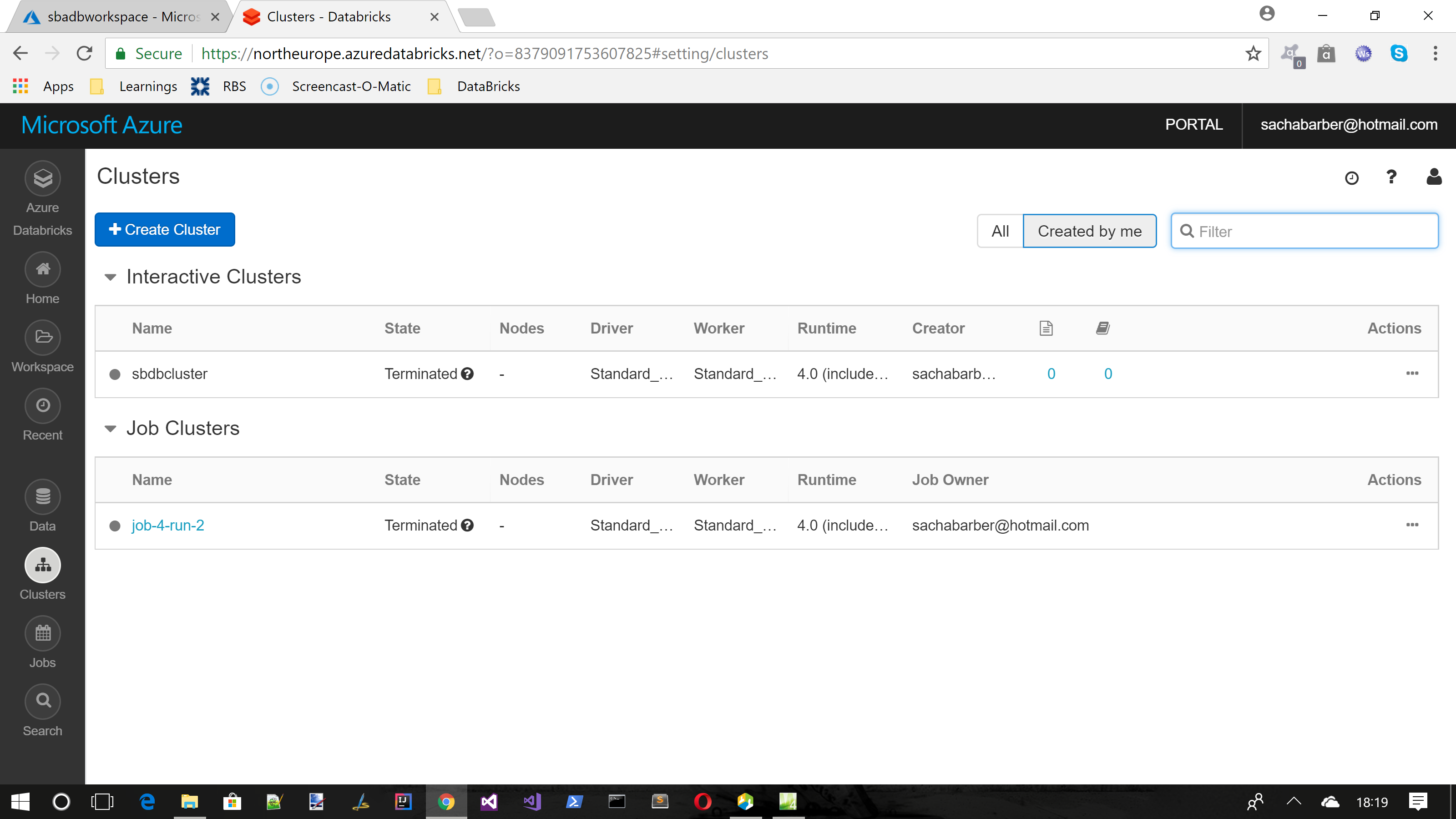
CLICK FOR BIGGER IMAGE
- Interactive clusters are ones that are tied to Notebooks which we look at next
- Job clusters are ones that are used to run Jobs
Explore A NoteBook
Now I am a long time Dev (I'm old, or feel it or something), so think nothing about opening up an IDE and writing an app/class lib/jar whatever. Bust at its heart Apache Spark is a tool for data scientists, who simply want to try some simple bits of number crunching code. That is exactly where notbooks come into play.
A notebook is a cellular editor that is hosted, that allows the user to run python/R/Scala code against a Apache Spark cluster.
You can create a new notebook from the home menu as shown below
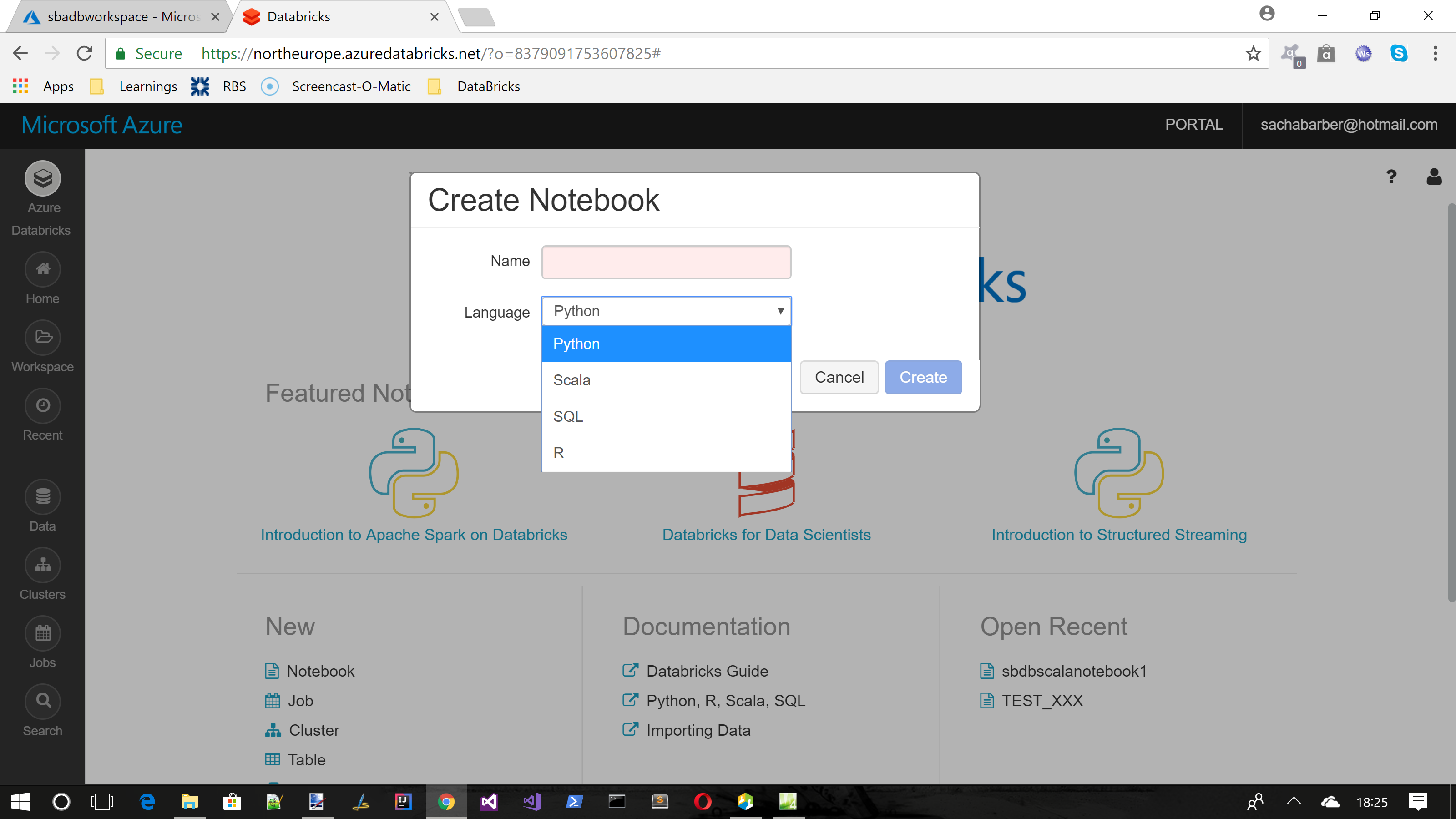
CLICK FOR BIGGER IMAGE
So after you have picked your language you will be presented with a blank notebook where you can write some code into the cells. Teaching you the short cuts and how to use notebooks properly is outside the scope of this article, but here is some points on notebooks:
- They allow you to quickly explore the APIs
- They allow you to re-assign variables which are remembered
- They allow you to enter just a specific cell
- They give you some pre-defined variables. But be wary you will need to swap these out if you translate this to real code. For exampleHide Copy Code
spark
is a pre-defined variable
Run Some NoteBook Code
So lets say I have just created a Scala notebook, and I typed the text as shown below in a cell. I can quickly run this using ALT + Enter or the run button in the notebook UI
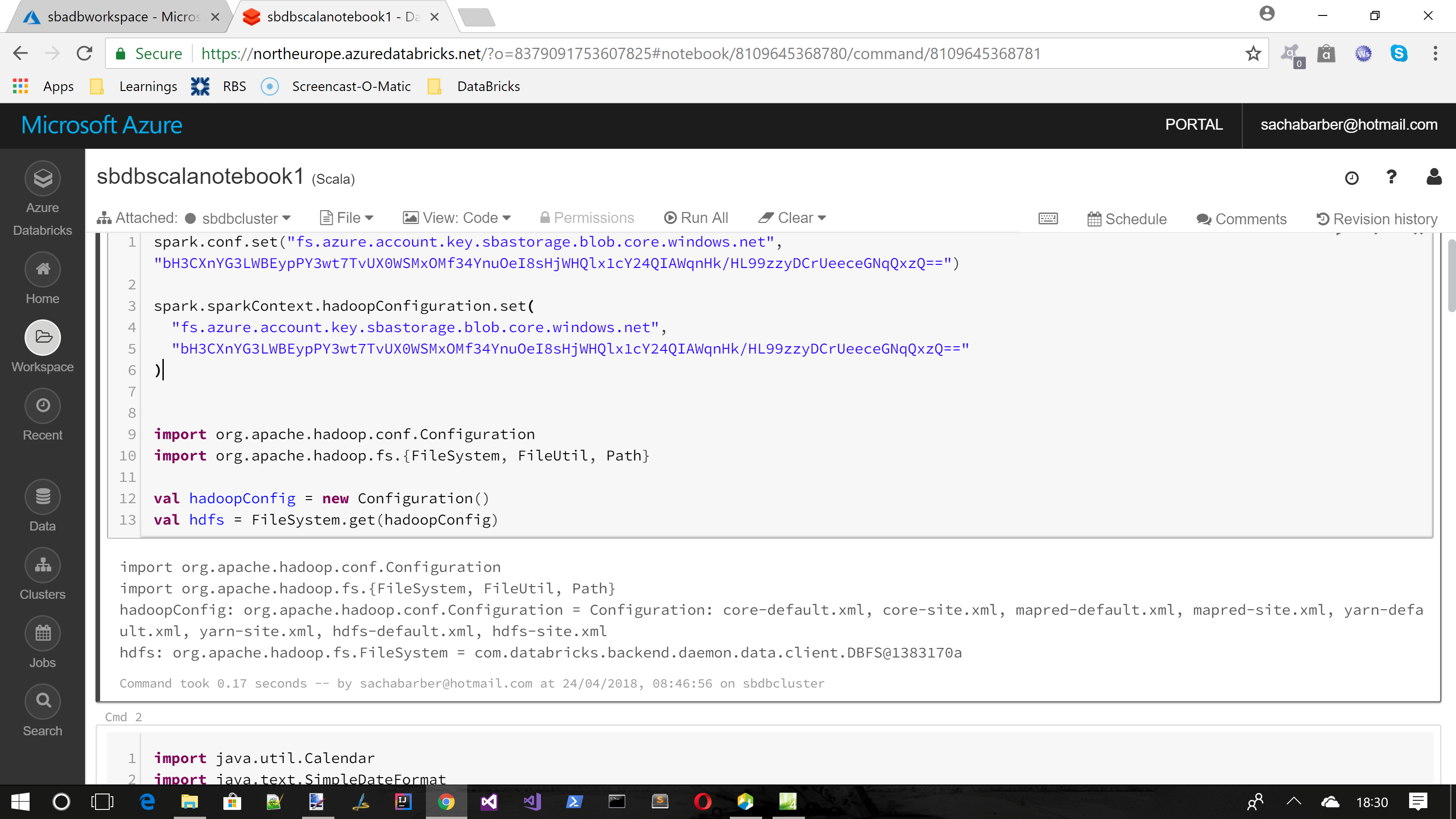
CLICK FOR BIGGER IMAGE
What this will do is run the active cell and print out the variables/output statements to the notebook UI, which can also be seen above
Read/Write From Azure Blob Store
One of the very common tasks when using Apache Spark is to grab some data from some external source and save it to storage once transformed into the required results
Here is an example of working with an existing Azure Blob Storage Account and some Scala code. This particular example simply loads a CSV file from Azure Blob Storage transforms the file and then saves it back to Azure Blob Storage as a date stamped named CSV file
Hide Shrink  Copy Code
Copy Codeimport java.util.Calendar
import java.text.SimpleDateFormat
spark.conf.set("fs.azure.account.key.YOUR_STORAGE_ACCOUNT_NAME_HERE.blob.core.windows.net", "YOUR_STORAGE_KEY_HERE")
spark.sparkContext.hadoopConfiguration.set(
"fs.azure.account.key.YOUR_STORAGE_ACCOUNT_NAME_HERE.blob.core.windows.net",
"YOUR_STORAGE_KEY_HERE"
)
val now = Calendar.getInstance().getTime()
val minuteFormat = new SimpleDateFormat("mm")
val hourFormat = new SimpleDateFormat("HH")
val secondFormat = new SimpleDateFormat("ss")
val currentHour = hourFormat.format(now) // 12
val currentMinute = minuteFormat.format(now) // 29
val currentSecond = secondFormat.format(now) // PM
val fileId = currentHour + currentMinute + currentSecond
fileId
val data = Array(1, 2, 3, 4, 5)
val dataRdd = sc.parallelize(data)
val ages_df = spark.read.format("csv")
.option("header", "true")
.option("inferSchema", "true")
.load("wasbs://YOUR_CONTAINER_NAME_HERE@YOUR_STORAGE_ACCOUNT_NAME_HERE.blob.core.windows.net/Ages.csv")
ages_df.head
//https://github.com/databricks/spark-csv
val selectedData = ages_df.select("age")
selectedData.write
.format("com.databricks.spark.csv")
.option("header", "false")
.save("wasbs://YOUR_CONTAINER_NAME_HERE@YOUR_STORAGE_ACCOUNT_NAME_HERE.blob.core.windows.net/" + fileId + "_SavedAges.csv")
val saved_ages_df = spark.read.format("csv")
.option("header", "true")
.option("inferSchema", "true")
.load("wasbs://YOUR_CONTAINER_NAME_HERE@YOUR_STORAGE_ACCOUNT_NAME_HERE.blob.core.windows.net/" + fileId + "_SavedAges.csv")
saved_ages_df.show()
Which for me looked like this for my storage account in Azure
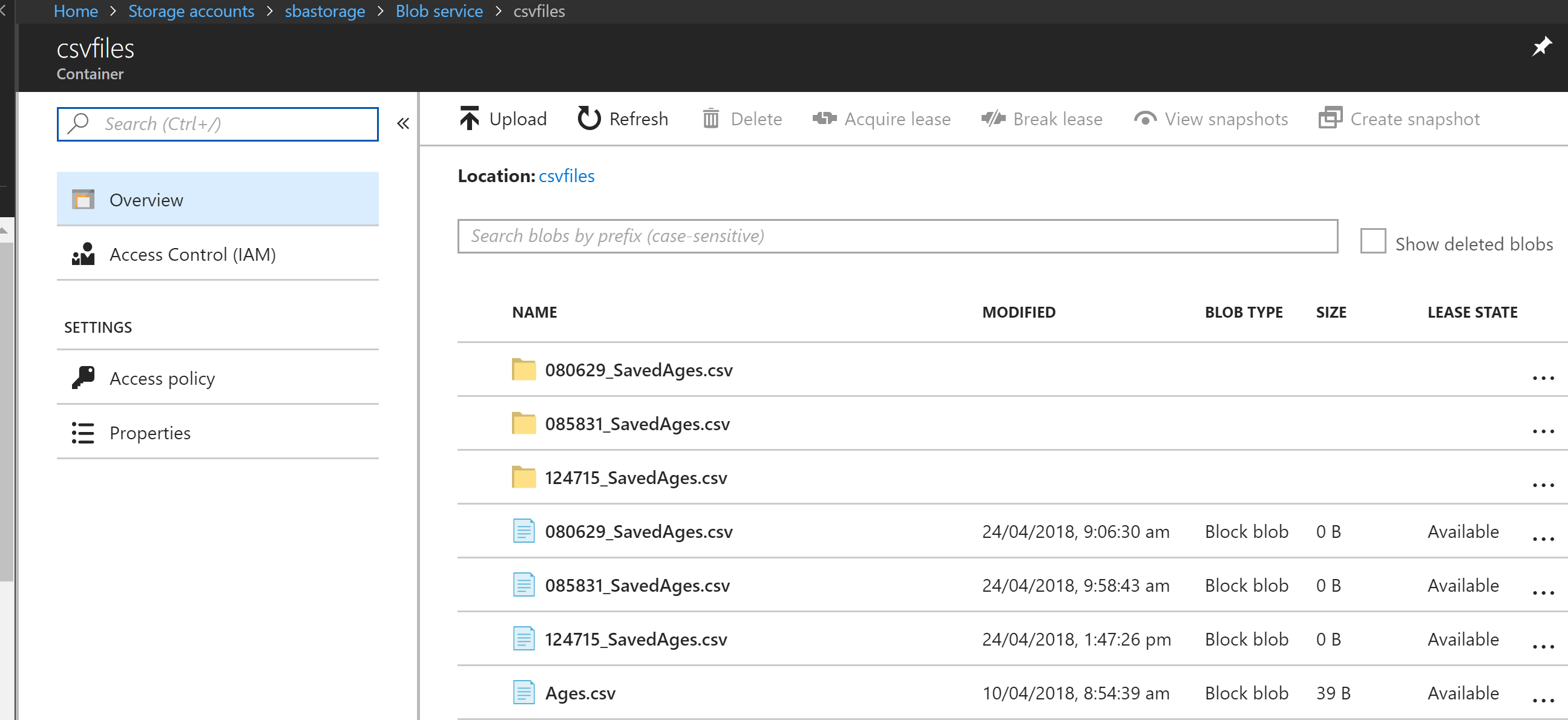
CLICK FOR BIGGER IMAGE
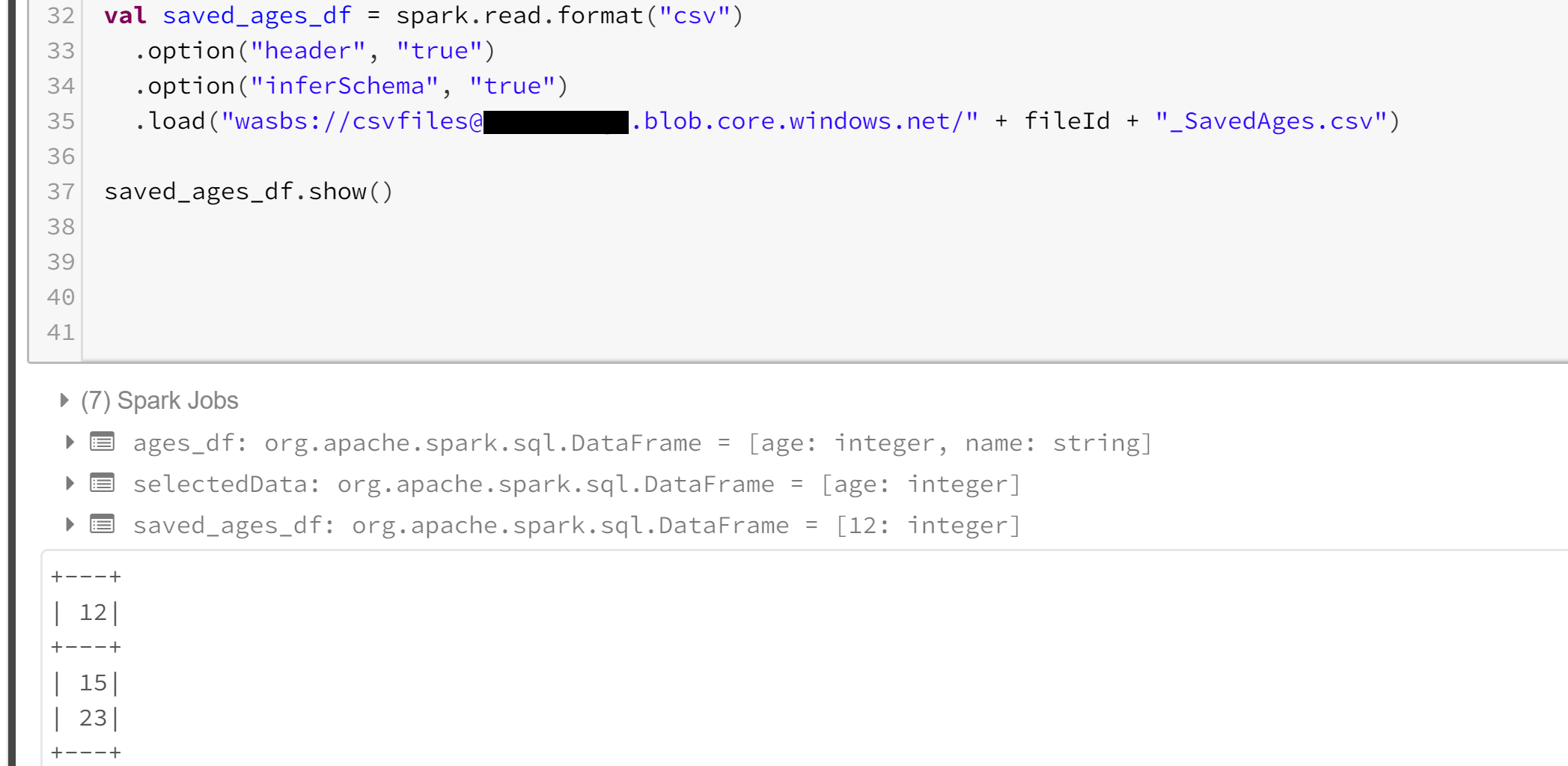
If you are wondering why there are folders for the results such as 080629_SavedAges.csv, this is due to how Apache Spark deals with partitions. Trust me it doesnt matter when you load things back into memory as Apache Spark just deals with this, as can be seen
CLICK FOR BIGGER IMAGE
Creating Jobs In DataBricks Web UI
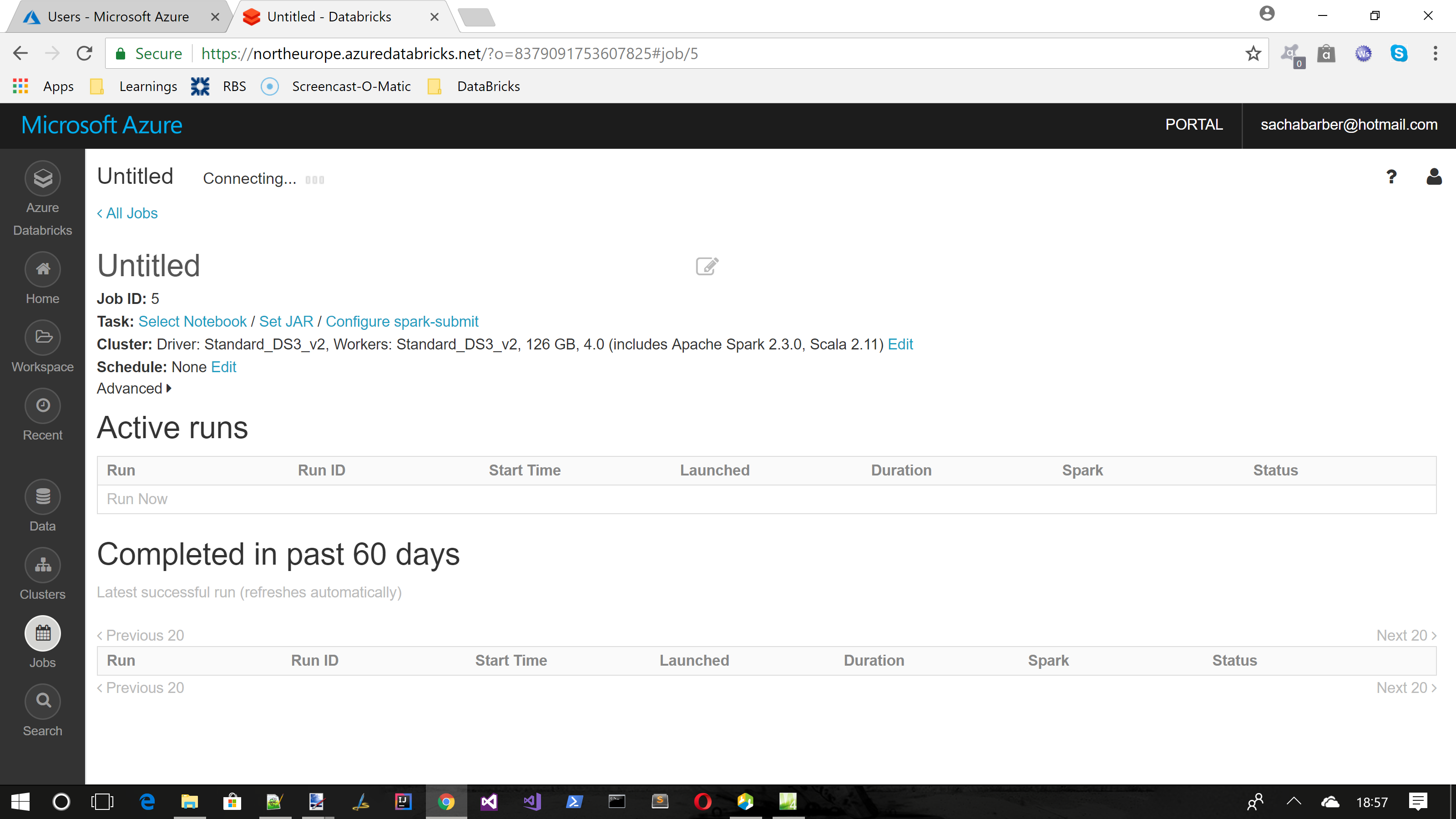
The Databricks web UI allows you to create a new job from either a Notebook or a JAR that you have that you can drag in and set a main entry point for. You may also setup a schedule and a cluster that you want to use. Once you are happy you can click the "run now" button which will run your job.
CLICK FOR BIGGER IMAGE
Launch The Spark UI/Dashboard
Once you have run a job it is likely that you want to have a look at it to see that it worked how you expected it to work, and that it is running optimally. Luckily Apache Spark comes equipt with a nice visualiser for a given analysis run that you can use for this. Its kind of like the SQL Query Profiler in SQL Server.
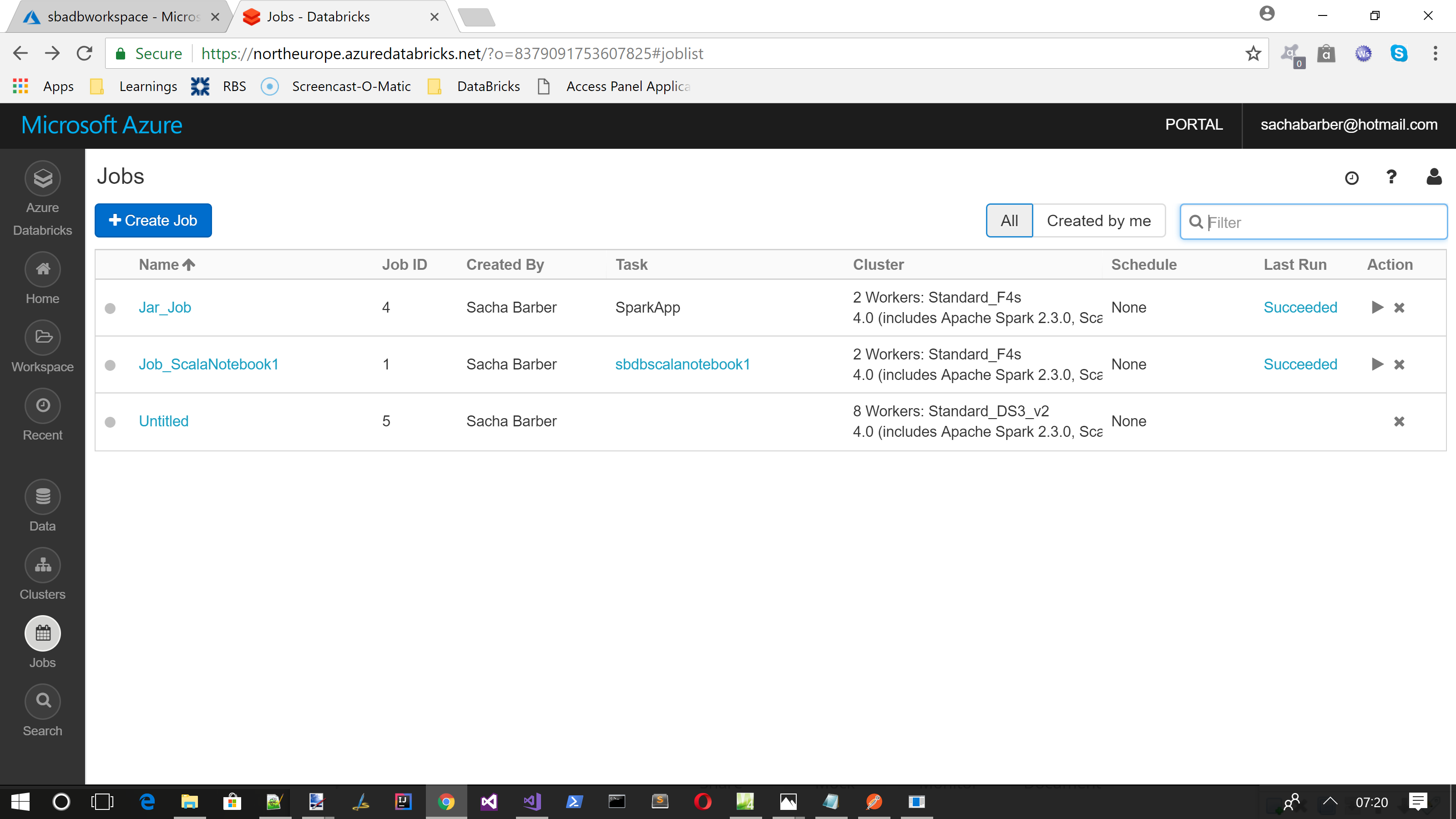
This is accessible from the jobs page
CLICK FOR BIGGER IMAGE
So lets take a look at a successful job, which we can view using the "Succeeded" link in the Last Run column in the Jobs page.
From there we can view the Apache Spark UI or the logs for the job.
Lets see the Apache Spark UI for this job.

CLICK FOR BIGGER IMAGE
The Spark UI is your friend, try and get acquianted with it
Databricks API
Ok so now that we have covered how to use the Databricks web UI, how about we get familiar with the REST API such that we can craft our own code around using Apache Spark as our analytics engine. This next section will show how to use some of the REST APIs available.
What APIs Are Available?
So you may now be wondering what APIs are actually available? This is the place to check : https://docs.databricks.com/api/latest/index.html
From there the main top level APIs are
- Clusters
- DBFS
- Groups
- Instance Profiles
- Jobs
- Libraries
- Secrets
- Token
- Workspace
There are simply not enough hours in the day for me to show you ALL of them. So I have chosen a few to demo, which we will talk about below
Creating A Token For Usage With API
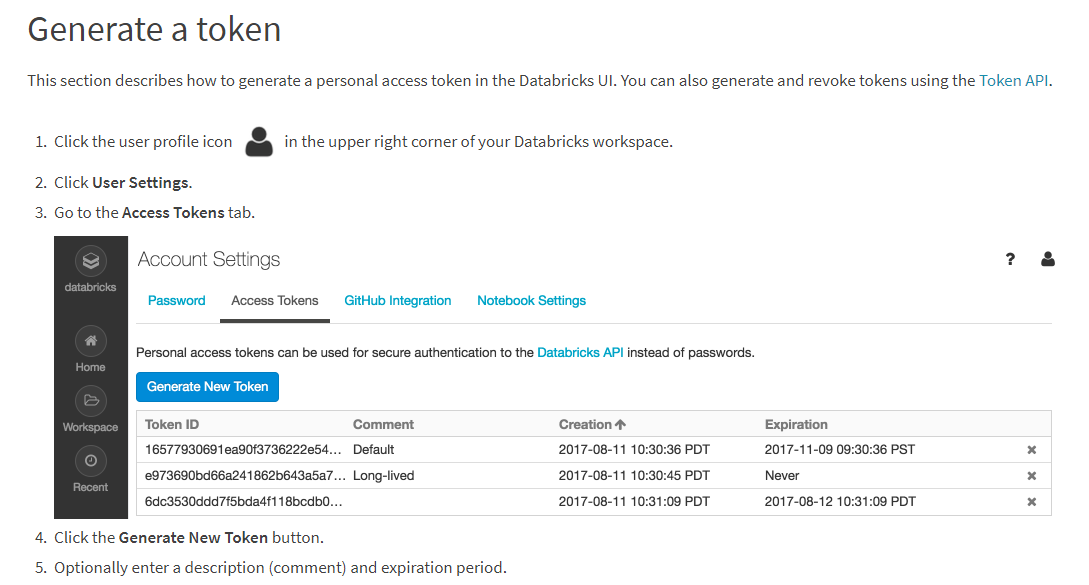
The Databricks REST APIs ALL need to have a JWT token associated with them. Which means you need to firstly create a token for this. This is easily achieved in the Databricks web UI. Just follow these steps
CLICK FOR BIGGER IMAGE
So once you have done that, grab the token value, and you will also need to take a note of one other bit of information which is shown highlighted in the image below. With these 2 bits of information we can use Postman to try a request

CLICK FOR BIGGER IMAGE


No comments:
Post a Comment